
The launcher is the settings window that opens when you start KoboldCpp without a model. It has a column of tabs on the left and the settings of the active tab on the right. Hover over a label to see its tooltip.
For most people, the Quick Launch tab is all they need. The other tabs hold the same settings in more detail, plus extra features.
Each setting also exists as a command-line flag. The tables below list both; see Command line and the flag reference.
Bottom buttons
Section titled “Bottom buttons”| Button | What it does |
|---|---|
| Update | Opens the latest release on GitHub in your browser. It does not update anything by itself; see Updating. |
| Save Config | Saves all current settings to a .kcpps file. The launcher does not remember settings otherwise. See Config files. |
| Load Config | Loads a .kcpps config or .kcppt template into the launcher. It does not launch. |
| Get Help | Opens the Help Menu: links to the wiki and starter guides, a Hugging Face model search, and ready-made templates. See Templates. |
| Launch | Starts KoboldCpp with the current settings. |
If you click Launch without a model, KoboldCpp asks whether you want help finding one. Yes opens the Help Menu.
Quick Launch
Section titled “Quick Launch”The beginner tab. Pick a model and click Launch.
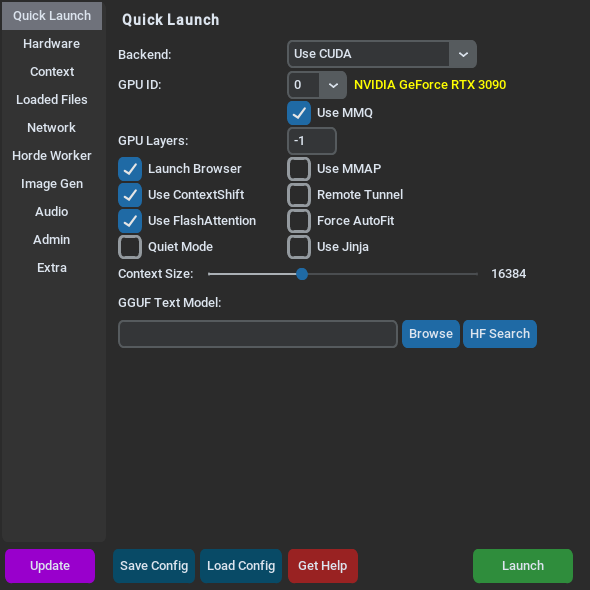
The Quick Launch and Hardware screenshots show a PC with an NVIDIA graphics card (Use CUDA). With Use Vulkan the same GPU fields appear except Use MMQ; with Use CPU they are hidden.
| Label | Flag | What it does |
|---|---|---|
| Backend: | --usecuda, --usevulkan, --usecpu | Where the model runs. CUDA is for NVIDIA cards and is the fastest. Vulkan works on most graphics cards. The CPU options run without a graphics card; on macOS, also set GPU Layers: to 0. KoboldCpp picks one for your hardware until you change it yourself. |
| GPU ID: | number after --usecuda / --usevulkan | Which graphics card to use. The card's name appears next to it. |
| GPU Layers: | --gpulayers | How much of the model goes on the graphics card. -1 (default) fits it automatically. |
| Context Size: | --contextsize | How much text the model keeps in mind. Default 16384. See Context size. |
| GGUF Text Model: | --model | The model file. Browse picks a file; HF Search finds one on Hugging Face. |
Checkboxes:
| Label | Flag | Default | What it does |
|---|---|---|---|
| Launch Browser | --launch | on | Opens KoboldAI Lite in your browser when loading is done. |
| Use MMAP | --usemmap | off | Loads the model with memory mapping. |
| Use ContextShift | --noshift turns it off | on | Avoids reprocessing the whole chat once the context is full. |
| Remote Tunnel | --remotetunnel | off | Creates a public internet URL for this instance. See Remote access. |
| Use FlashAttention | --noflashattention turns it off | on | Faster attention that uses less memory. |
| Force AutoFit | --autofit | off | Forces the automatic fit. Hides GPU Layers:. Marked experimental. |
| Quiet Mode | --quiet | off | Hides generation output in the terminal. |
| Use Jinja | --jinja | off | Formats chat requests with the model's own chat template. Other endpoints are unaffected. |
| Use MMQ | --nommq turns it off | on | A CUDA option for prompt processing. |
Hardware
Section titled “Hardware”Backend and graphics card settings in more detail, plus CPU threads and batch sizes.
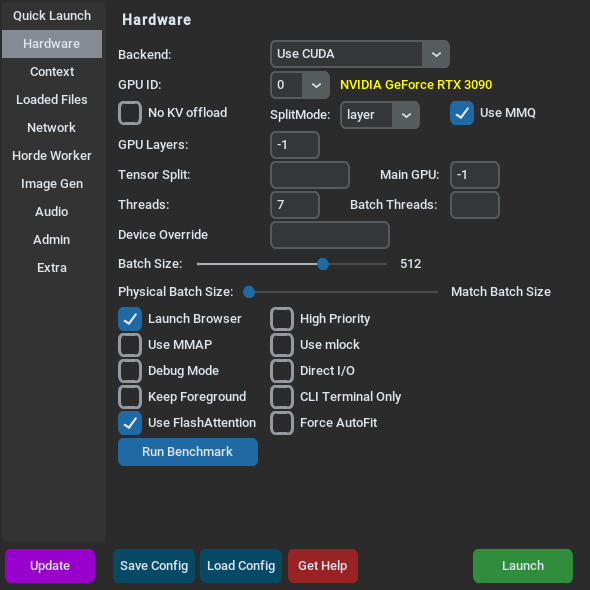
GPU ID:, GPU Layers:, SplitMode:, Tensor Split:, Main GPU: and No KV offload appear with a GPU backend. Autofit Padding (MB): appears only with Force AutoFit.
| Label | Flag | What it does |
|---|---|---|
| Backend:, GPU ID:, GPU Layers: | see Quick Launch | Same settings as on Quick Launch. |
| SplitMode:, Tensor Split:, Main GPU: | --splitmode, --tensor_split, --maingpu | How to share the model across several graphics cards. See Multiple GPUs. |
| Autofit Padding (MB): | --autofitpadding | Spare graphics memory the automatic fit leaves free. |
| Threads:, Batch Threads: | --threads, --blasthreads | CPU threads for generating and for prompt processing. Blank means automatic. The launcher fills in Threads: with the automatic value for your PC; clear it to keep it automatic in a config you use on another PC. |
| Batch Size:, Physical Batch Size: | --batchsize, --ubatchsize | How many tokens are processed at once. Smaller values save memory but process prompts more slowly. |
| Device Override | --device | Selects devices by name. |
| No KV offload | --lowvram | Keeps the context memory off the graphics card. Slow. |
| Use mlock | --usemlock | Keeps the model in RAM so the system cannot swap it out. |
| Direct I/O | --usedirectio | Another way to load the model file. |
| Debug Mode | --debugmode | Prints extra information in the terminal. Useful when something goes wrong. |
| High Priority | --highpriority | Asks the system for a higher CPU priority. On Linux it lowers the priority instead. |
| Keep Foreground | --foreground | Windows only: brings the terminal window to the front on each request. |
| CLI Terminal Only | --cli | Chat in the terminal, without the web server. |
Run Benchmark loads the model, measures prompt processing and generation speed, and prints the results in the terminal instead of starting the server.
For help choosing these values, see GPU layers and Saving VRAM.
Context
Section titled “Context”How much text the model keeps in mind, how KoboldCpp reuses it between requests, and server-wide generation defaults.
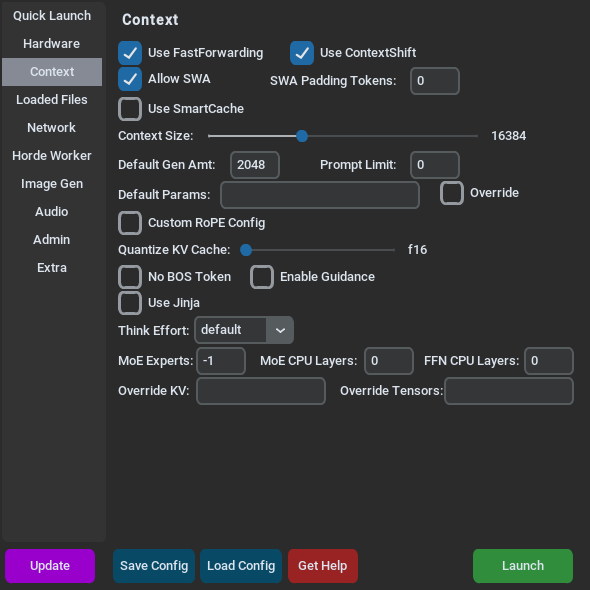
| Label | Flag | What it does |
|---|---|---|
| Context Size: | --contextsize | Same slider as on Quick Launch. Moving one moves the other. |
| Use FastForwarding | --nofastforward turns it off | Reuses the part of the prompt that has not changed. On by default. |
| Use ContextShift | --noshift turns it off | See Quick Launch. |
| Allow SWA | --noswa turns it off | Smaller context memory on models that support it. On by default. |
| Use SmartCache / CacheSlots: | --smartcache | Keeps snapshots of recent chats in RAM for quick switching. CacheSlots: appears once Use SmartCache is ticked. |
| Quantize KV Cache: | --quantkv | Stores the context in a smaller format to save memory. |
| Default Gen Amt: | --defaultgenamt | Reply length when the app does not set one. Default 2048. |
| Prompt Limit: | --genlimit | A hard cap on reply length for every request. |
| Default Params: / Override | --gendefaults, --gendefaultsoverwrite | Default generation settings for all apps, as JSON. Override makes them replace what the app sent. |
| Use Jinja, Jinja for Tools, Jinja Thinking:, Jinja Kwargs: | --jinja, --jinja_tools, --jinjathink, --jinja_kwargs | Chat template options. The other three appear once Use Jinja is ticked. |
| Think Effort: | --reasoningeffort | Default reasoning effort for thinking models. Apps can override it. |
| MoE CPU Layers:, FFN CPU Layers: | --moecpu, --ffncpu | Keep parts of the model in RAM. See Saving VRAM. |
The tab also has RoPE settings, No BOS Token, Enable Guidance, MoE Experts:, Override KV: and Override Tensors: for advanced use. All of these are in the flag reference.
Details on the context options: Context size.
Loaded Files
Section titled “Loaded Files”Every file KoboldCpp loads for text chat, plus a few related files.
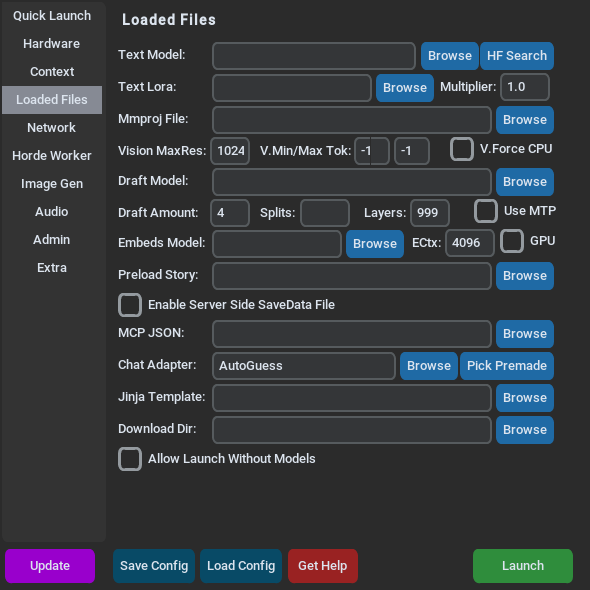
| Label | Flag | What it does |
|---|---|---|
| Text Model: | --model | The main model. Same as GGUF Text Model: on Quick Launch. |
| Text Lora: / Multiplier: | --lora, --loramult | A LoRA adapter for the text model. |
| Mmproj File: | --mmproj | The vision projector that lets the model see images. See Vision. |
| Draft Model: | --draftmodel | A small model that speeds up generation (speculative decoding). |
| Embeds Model: | --embeddingsmodel | A model for the embeddings endpoint. See Embeddings. |
| Preload Story: | --preloadstory | A story that KoboldAI Lite opens on start. |
| Enable Server Side SaveData File / SaveData File: | --savedatafile | Stores KoboldAI Lite saves on the server. See Multiplayer and saves. |
| MCP JSON: | --mcpfile | MCP tool servers. See Web search and MCP. |
| Chat Adapter: / Pick Premade | --chatcompletionsadapter | The chat format for the chat completions endpoint. Pick Premade lists the bundled formats. |
| Jinja Template: | --jinjatemplate | A custom Jinja chat template file. |
| Download Dir: | --downloaddir | Where downloaded models are saved. |
| Allow Launch Without Models | --nomodel | Starts KoboldAI Lite without a local model, for use with online services. |
Network
Section titled “Network”How apps and other devices reach KoboldCpp.
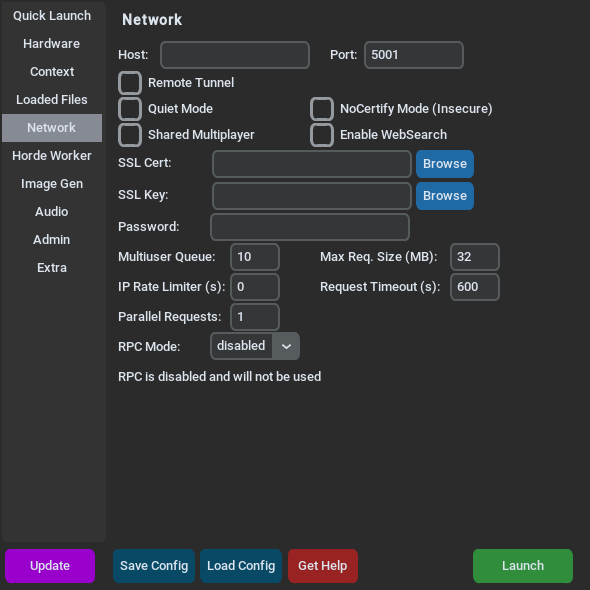
| Label | Flag | What it does |
|---|---|---|
| Host: | --host | The network address to listen on. Empty (default) means all addresses, so other devices on your network can connect. Enter 127.0.0.1 to allow only this computer. |
| Port: | --port | Default 5001. |
| Remote Tunnel | --remotetunnel | A public internet URL through Cloudflare. |
| Password: | --password | An API key for the text endpoints. |
| SSL Cert: / SSL Key: | --ssl | Serves over HTTPS. |
| Shared Multiplayer | --multiplayer | Several people share one story in KoboldAI Lite. |
| Enable WebSearch | --websearch | Lets the model search the web. |
| Multiuser Queue: | --multiuser | How many requests it accepts at once, counting the one that is running. See Streaming and multiple users. |
| Max Req. Size (MB):, IP Rate Limiter (s): | --maxrequestsize, --ratelimit | Limits for public instances. |
| Parallel Requests: | --parallelrequests | Processes several simple text requests at once. Experimental. Turns off ContextShift. |
| Request Timeout (s): | --reqtimeout | Only used in router mode. See Admin mode. |
| RPC Mode: | --rpcmode | Shares or uses graphics cards across computers. See RPC. |
Horde Worker
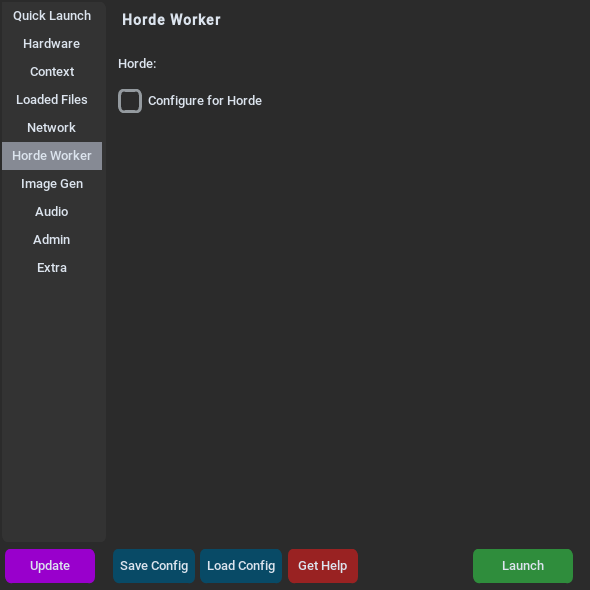
Section titled “Horde Worker”Shares your model with the AI Horde, a volunteer network, so other people can use it.
| Label | Flag | What it does |
|---|---|---|
| Configure for Horde | Turns on the built-in Horde worker and shows its fields. | |
| Horde Model Name: | --hordemodelname | The model name shown on the Horde. |
| Gen. Length:, Max Context: | --hordegenlen, --hordemaxctx | Limits for Horde requests. |
| API Key (If Embedded Worker): | --hordekey | Your Horde API key. |
| Horde Worker Name: | --hordeworkername | Your worker's name. |
See Horde worker.
Image Gen
Section titled “Image Gen”Loads an image model next to (or instead of) the text model.
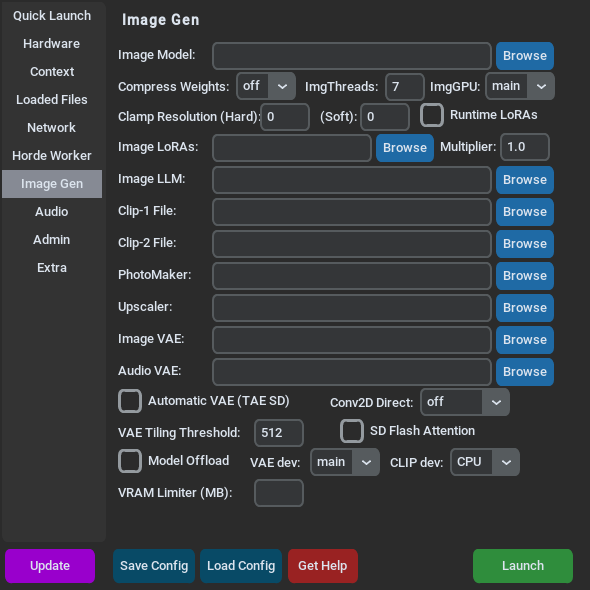
The most important field is Image Model: (--sdmodel). The other fields hold extra files some image models need (Image LLM:, Clip-1 File:, Clip-2 File:, Image VAE:), LoRAs, an upscaler, resolution limits and memory options. See Image generation.
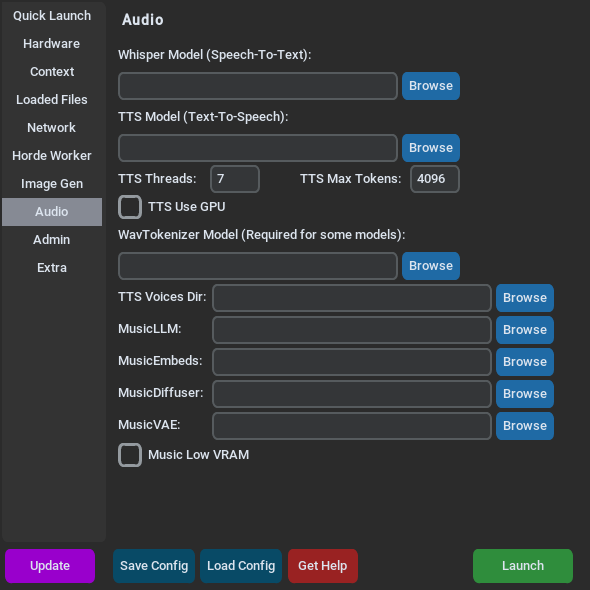
Speech-to-text, text-to-speech and music models.
| Label | Flag | What it does |
|---|---|---|
| Whisper Model (Speech-To-Text): | --whispermodel | Transcribes speech. See Speech to text. |
| TTS Model (Text-To-Speech): | --ttsmodel | Reads text aloud. Some TTS models also need WavTokenizer Model (Required for some models): (--ttswavtokenizer). See Text to speech. |
| MusicLLM:, MusicEmbeds:, MusicDiffuser:, MusicVAE: | --musicllm, --musicembeddings, --musicdiffusion, --musicvae | The files for music generation. See Music. |
Switching models and configs while KoboldCpp runs.
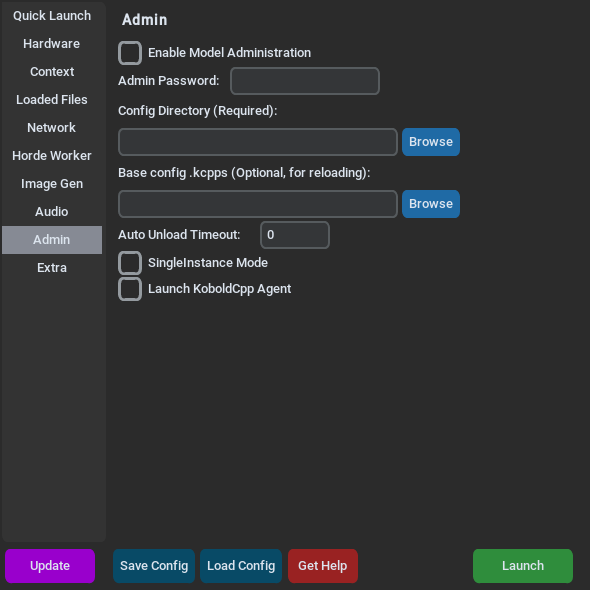
| Label | Flag | What it does |
|---|---|---|
| Enable Model Administration | --admin | Turns on admin mode. |
| Admin Password: | --adminpassword | Protects the admin functions. Set one whenever admin mode is on. |
| Config Directory (Required): | --admindir | The folder with the configs and models you can switch to. |
| Base config .kcpps (Optional, for reloading): | --baseconfig | Settings applied under every switched-to config or model, unless the switch names its own base config. |
| Auto Unload Timeout: | --adminunloadtimeout | Unloads the model after this many idle seconds. |
| Router Mode, Autoswap Mode, Autoswap Threshold (MB): | --routermode, --autoswapmode, --autoswapthreshold | Switch models automatically per request. Each appears once the setting before it is ticked, starting with Enable Model Administration. |
| SingleInstance Mode | --singleinstance | A new KoboldCpp on the same port can shut this one down. |
| Launch KoboldCpp Agent | --agent | Starts the KoboldCpp Agent when loading is done. See Agent. |
See Admin mode.
Tools that run right away instead of being launch settings.
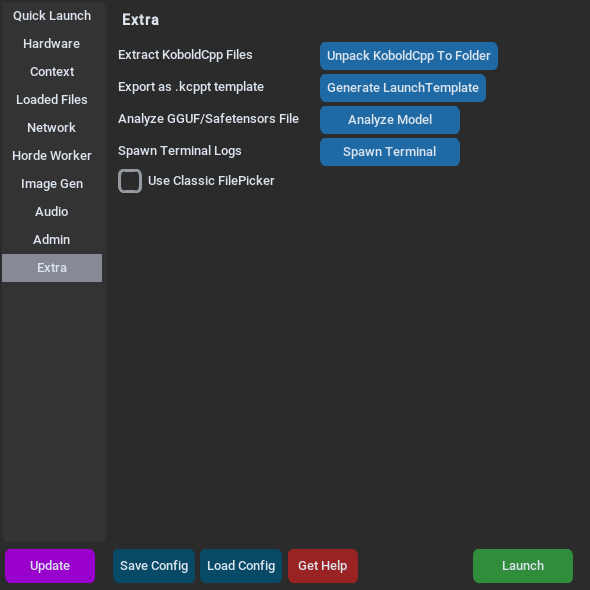
| Button | Flag | What it does |
|---|---|---|
| Unpack KoboldCpp To Folder | --unpack | Extracts KoboldCpp's files into an empty folder, for faster starts. |
| Generate LaunchTemplate | --exporttemplate | Saves the current settings as a .kcppt template for others. See Templates. |
| Analyze Model | --analyze | Shows the metadata and tensors of a GGUF or safetensors file. |
| Register / Unregister | Windows only: opens .gguf, .ggml, .kcpps and .kcppt files with KoboldCpp. | |
| Use Classic FilePicker | Linux only: uses the older file dialog. | |
| Spawn Terminal | Linux only: opens a terminal window that shows KoboldCpp's output. |