
Put the file you downloaded in a folder of its own, for example C:\mystuff on Windows. Models that KoboldCpp downloads for you are saved next to it.
Double-click the file. A black console window opens, then the launcher.
If Windows shows "Windows protected your PC", click More info, then Run anyway. This is expected: the file is not signed. If your antivirus removes the file, see SmartScreen and antivirus warnings.
Open a terminal in the folder with the file, make it executable and run it. This example uses the NVIDIA file; use your file's name:
cd ~/Downloadschmod +x koboldcpp-linux-x64./koboldcpp-linux-x64Open Terminal, make the file executable and run it:
cd ~/Downloadschmod +x koboldcpp-mac-arm64./koboldcpp-mac-arm64The first time, macOS says it could not verify the file. Click Done, then open System Settings → Privacy & Security, scroll down and click Open Anyway. Run the file again and confirm.
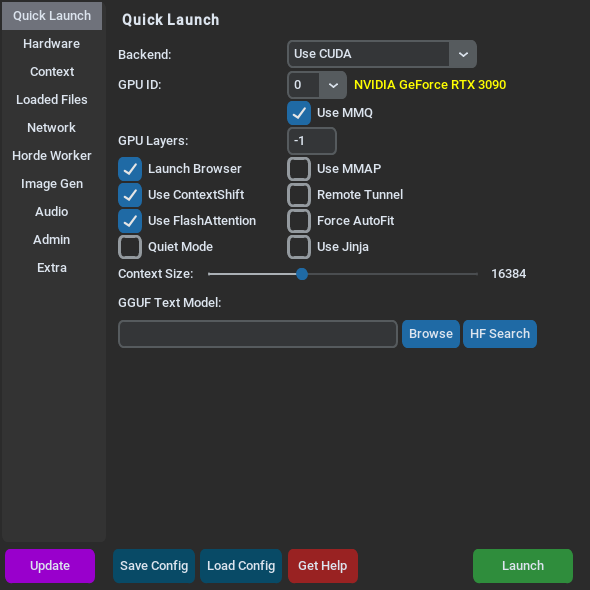
The launcher opens on the Quick Launch tab. KoboldCpp picks the Backend: for your hardware, and the other defaults generally work, so leave them as they are.
Keep the console window (or terminal) open while you use KoboldCpp. Closing it stops KoboldCpp.